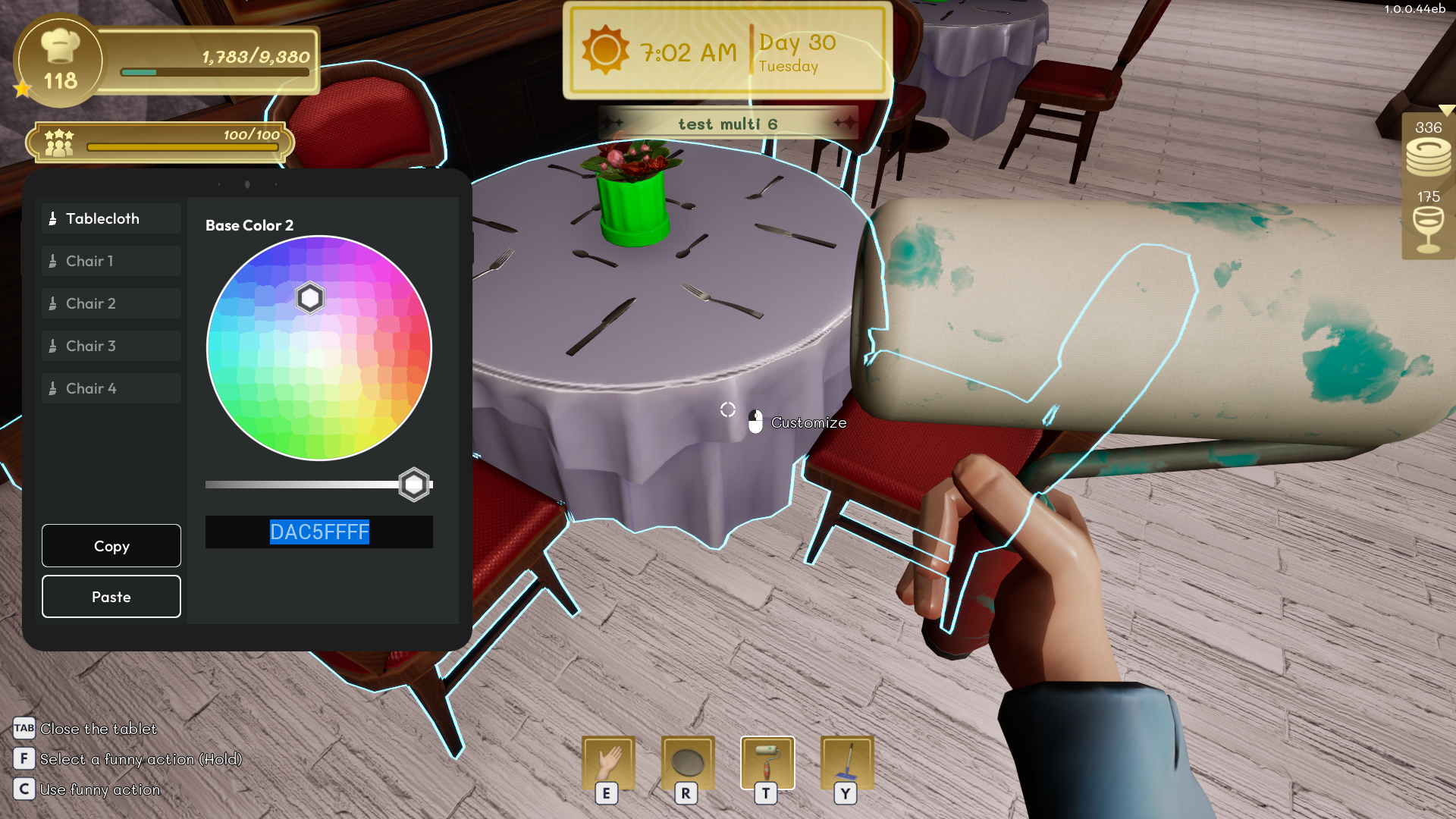
Many pieces of furniture and decorative items can be repainted without having to move or replace them.
Customize an object
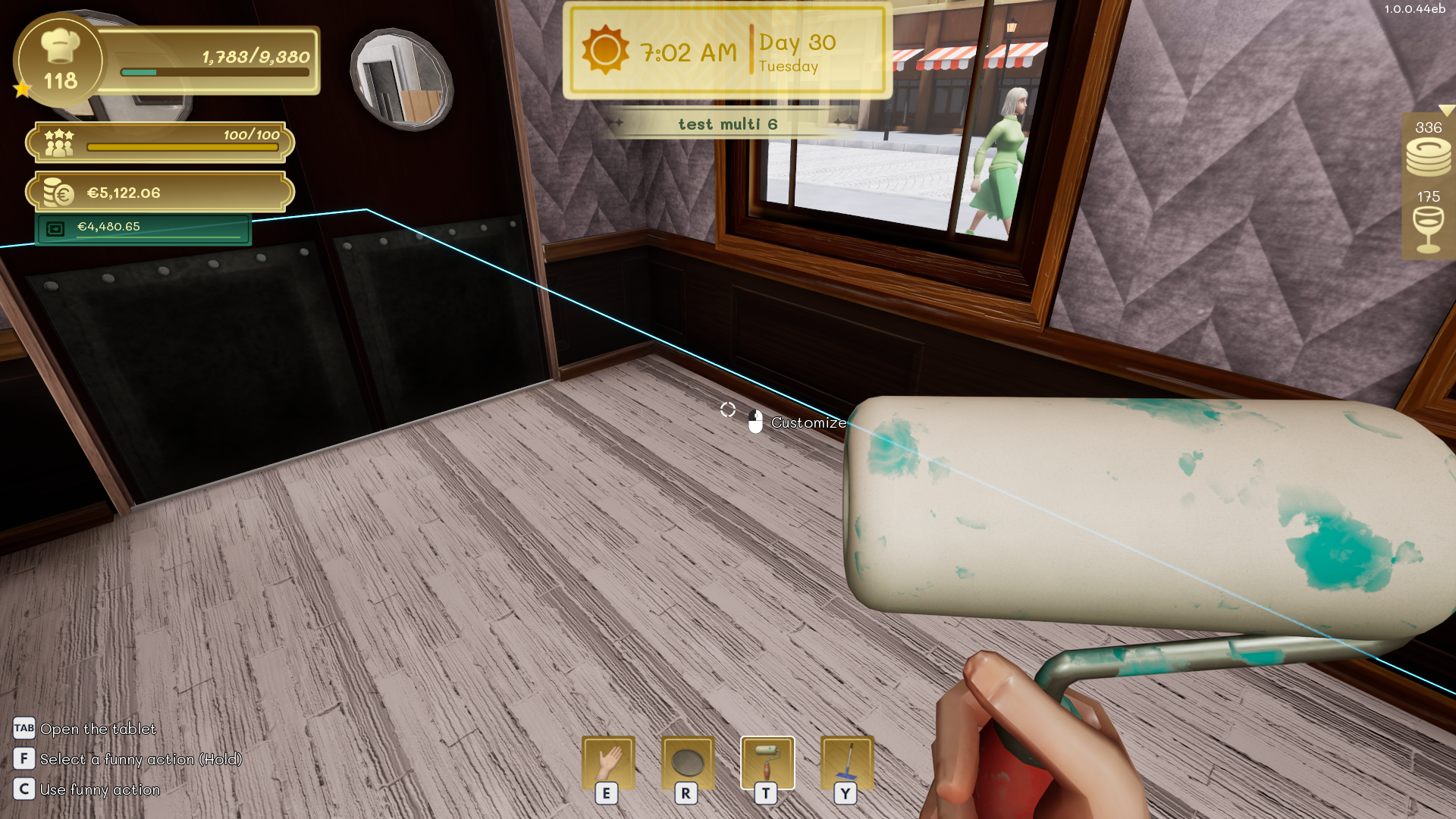
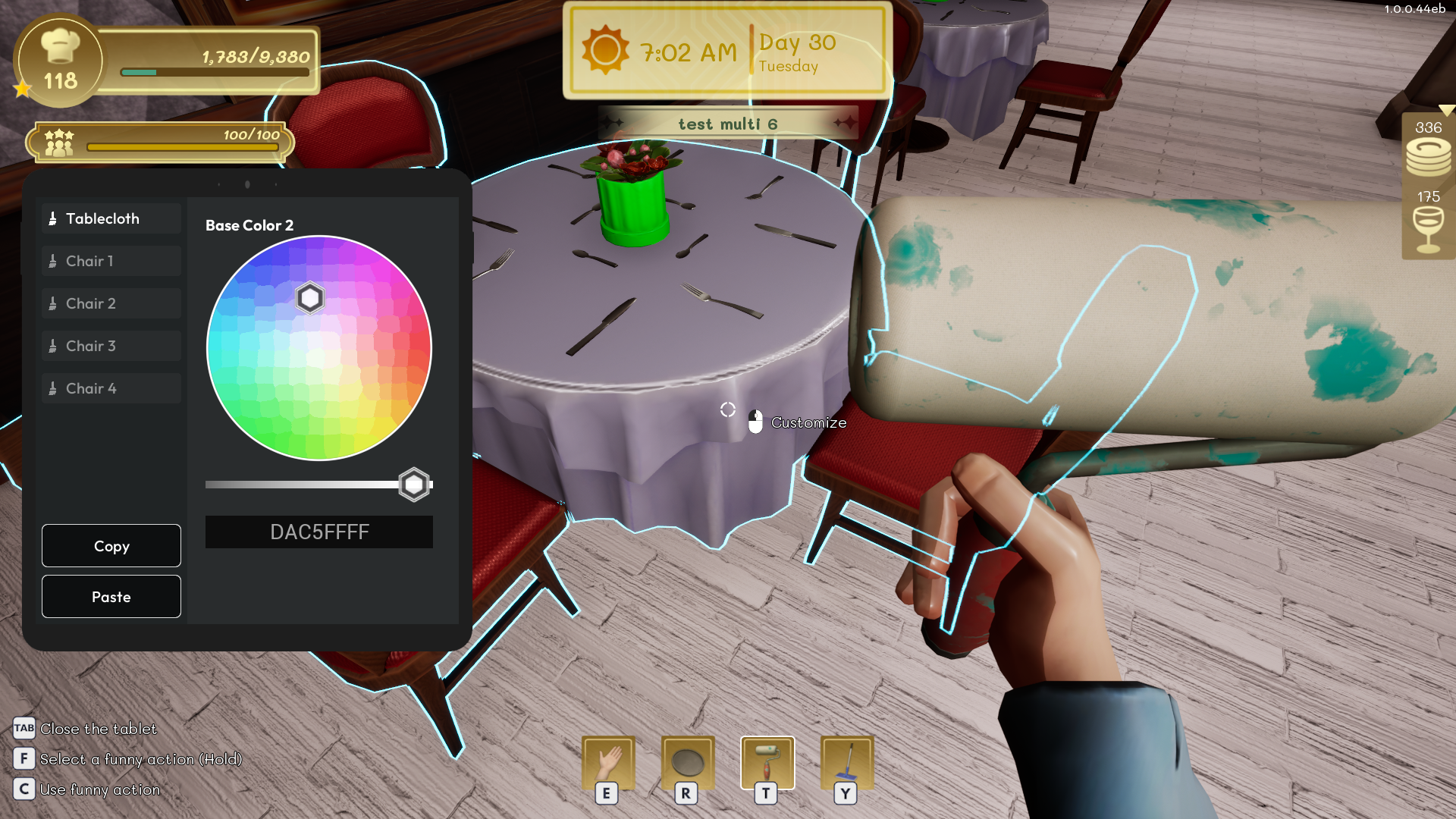
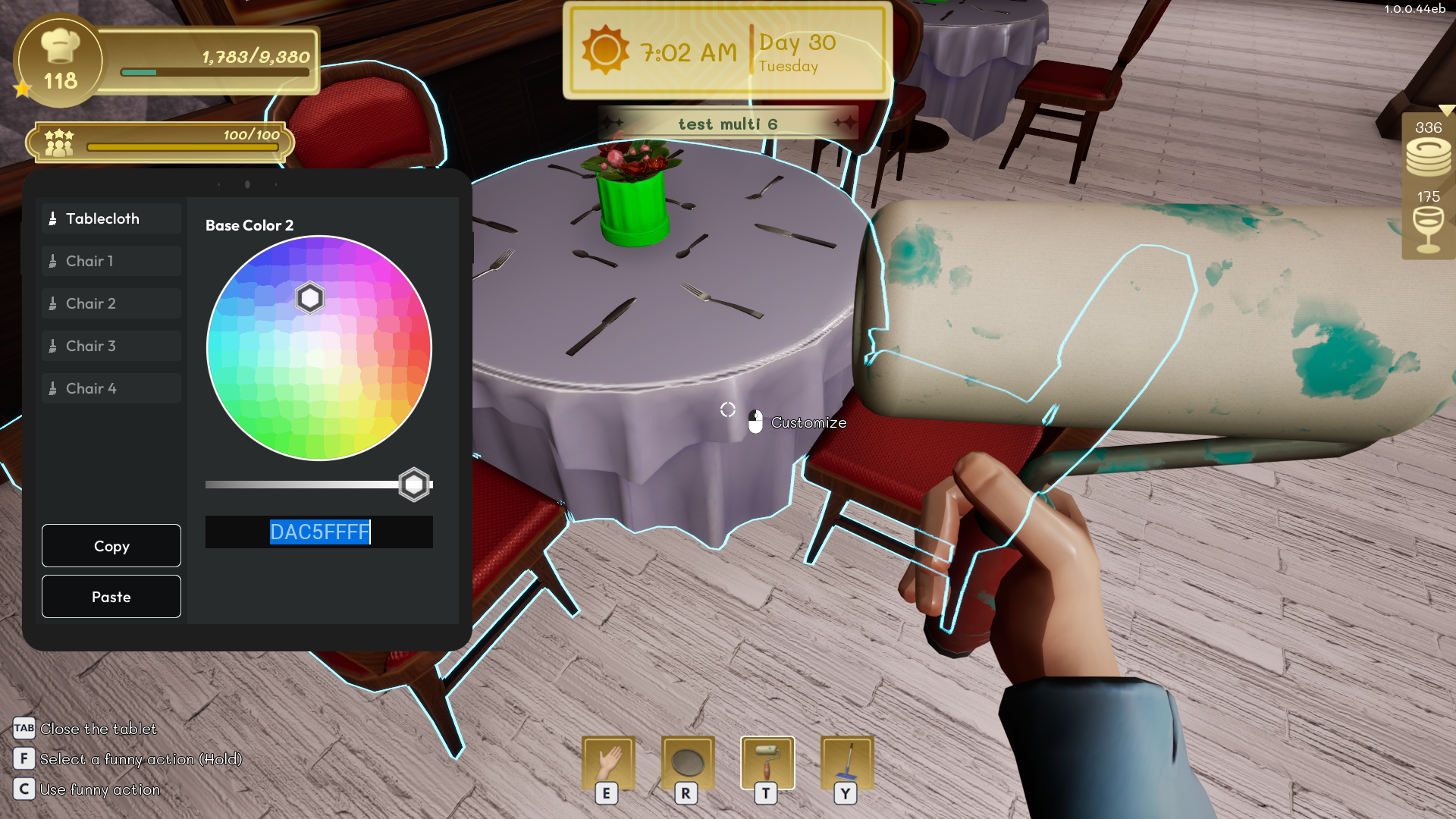
Equip the paintbrush by pressing the T key on your keyboard (default key). Aim at a customizable object (tables, walls, doors, etc.). The customization interface appears. You can choose one or more colors in two ways:
- The basic color wheel: move the white pointer in the center of the color wheel until you find the color you want. The color of the object being customized changes in real time so you can see the result immediately.
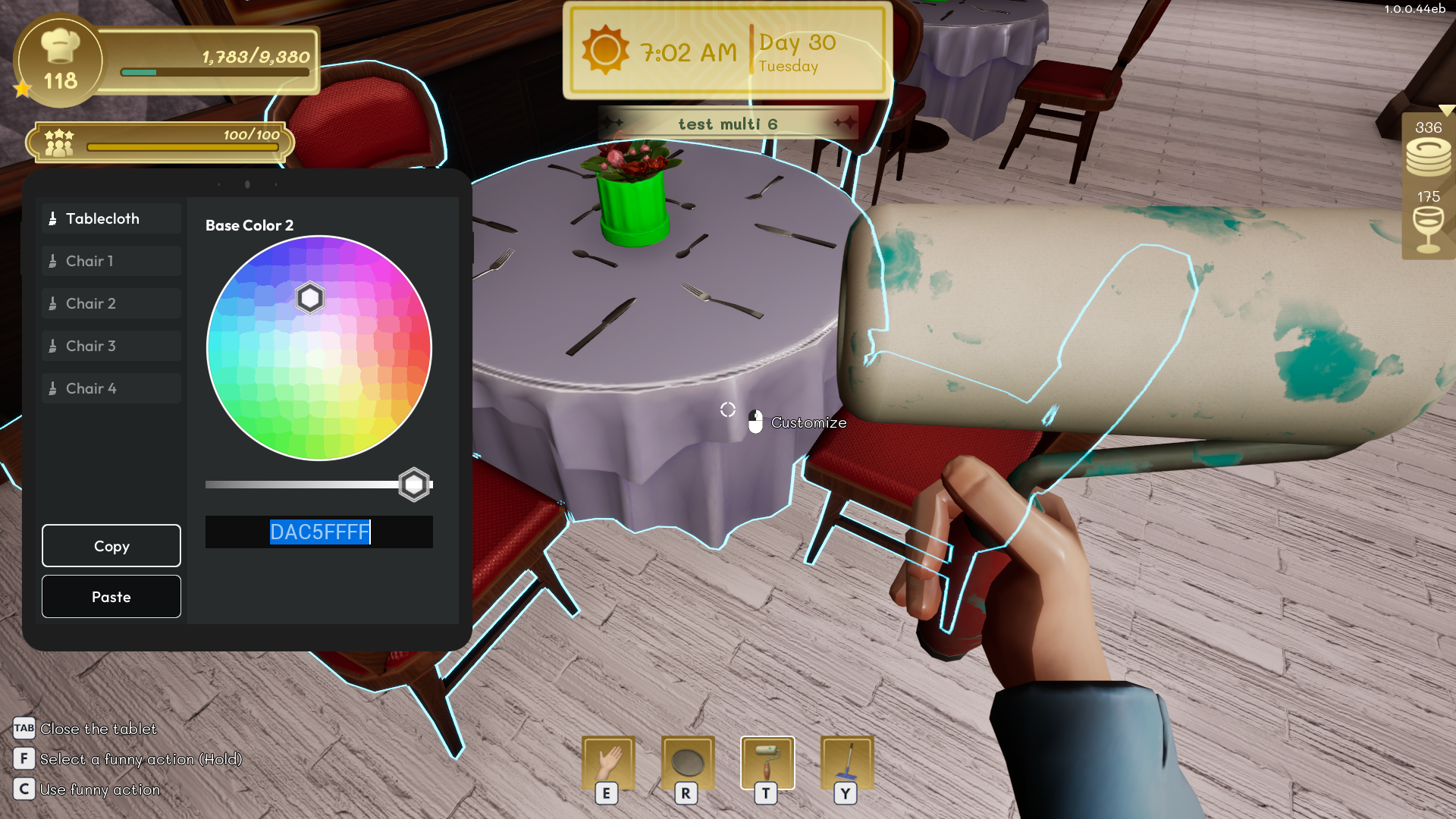
- The color code: if you already know the color code you need, enter it in the box at the bottom of the interface window.
Some customizable objects have several parts (for example, with a four-seat table, you must customize the table and each of the four chairs individually). The different parts appear on the left side of the customization interface.
Finally, you can copy a customization and quickly apply it to another customizable item using the copy/paste buttons at the bottom left of the customization window.